Your website changes faster than your translations can keep up, and every update seems to pull a developer back into the work. Then comes the harder question: will the translated pages you launch hurt the rankings you worked to earn?
Both problems get easier when localization connects directly to your CMS and your SEO setup is ready before launch. This guide compares the four integration methods, with setup notes for the platforms B2B SaaS teams use most. It then covers the SEO safeguards Google documents for translated pages, plus a launch checklist.
Can website localization integrate with my CMS?
Yes. Website localization can integrate with almost any CMS through four methods: native multilingual features, plugins, API or TMS connectors, and JavaScript or proxy delivery. For SEO, each translated page also needs its own indexable URL, reciprocal hreflang tags, translated metadata, and text that crawlers can read.
The method that fits depends on how your CMS is built and who owns content updates. A marketing team on WordPress needs something different from an engineering team running a headless stack with content pulled through an API.
It helps to separate three terms that often get mixed up. Internationalization (i18n) prepares your code and templates to support more than one language, while translation converts the words themselves. Localization goes further and adapts the experience for each market, including date formats, currency, imagery, and tone.
Those choices also shape how translated pages perform in search, which we cover in our guide to SEO translation versus localization. Localize integrates with WordPress, Webflow, Drupal, Zendesk, and ReadMe, along with headless CMS environments and React apps.
Why CMS-connected localization matters
Your website changes every week. New landing pages ship and pricing copy gets revised, while a manual copy-paste translation workflow falls further behind with each update.
That gap usually lands on developers, who export strings, send files to translators, wait, and then rebuild pages with the translated text.
The market case for keeping up is clear. W3Techs content language statistics show that, as of October 27, 2026, English is used by 49.5% of websites with a known content language. An English-only site speaks to roughly half of that web and leaves the other half untouched.
Buyer preference points the same way. A 2020 SA Research consumer survey of 8,709 consumers in 29 countries found that 76% of online shoppers prefer to buy products with information in their native language. In the same CSA Research survey, 40% said they will never buy from websites in other languages.
Read those figures with their limits in mind. They are self-reported B2C answers, and CSA Research also found that 66% would pick a cheaper product without information in their language.
Treat them as a directional signal for B2B SaaS. Your content never stops changing, so localization works best as an ongoing workflow connected to your CMS.
Website localization CMS integration methods compared
Every localization CMS setup does the same basic job. It finds content and sends it for translation, then publishes approved translations to the right language version of the page. The four methods differ in how much engineering they take and how much of the SEO setup you control.
Your CMS architecture narrows the options. A traditional CMS renders pages itself, so plugins and snippets fit well. A headless CMS delivers content through an API, which suits connector workflows.
Native CMS multilingual features
Many CMS platforms let you add locales or duplicate fields for each language. Translators then work inside the CMS editor, which lacks the translation memory and glossaries they rely on to stay consistent and fast.
This approach works for a handful of pages in one or two languages. As content and languages grow, every update means another manual pass across every locale. Support also varies by platform, and Localize's Webflow page notes that Webflow itself does not offer built-in multilingual support.
Plugins and code snippets
Plugins and snippets give marketers a no-code path to multilingual pages. The Localize WordPress plugin follows a short setup:
- In WordPress, go to Plugins > Add New and install "Localize - Website Translation Integration."
- Activate the plugin.
- Enter your Localize Project Key in the plugin settings and save.
- Visit your pages in the new language to send content to your Localize dashboard.
From there, Localize detects new and updated content automatically. You choose AI translation, human translators, or both for each piece of content. Webflow works in a similar way through a snippet in your Head Code, covered in the CMS notes below.
API and TMS connectors
A translation management system (TMS) connector pulls content from your CMS field by field and pushes approved translations back. This model fits a headless CMS or custom stack, where content already lives as structured data.
With Localize, your team scopes requirements with the Localize team and then uses the Localize API, SDKs, and webhooks to automate translation workflows. Ahrefs took this route after file-based workflows consumed excessive engineering resources. Read how the team set up Ahrefs automated phrase delivery through the Localize Backend API across 13 active languages.
JavaScript and proxy delivery
JavaScript translation adds a snippet to your site that detects new and changed content as it appears, which suits dynamic web apps. For Next.js, the Localize Next.js integration uses a one-line JavaScript snippet that supports server-side rendering (SSR) and static site generation (SSG). It also detects content loaded at runtime or fetched from an API.
The SEO question here is rendering. Google's JavaScript SEO basics confirm that Google Search runs JavaScript with an evergreen version of Chromium. Google still calls server-side or pre-rendering "a great idea," because not all bots can run JavaScript.
Pages may also wait in Google's rendering queue for longer than a few seconds, according to the same guidance. Localize's Advanced SEO, available on the Advanced plan, handles rendering and indexing for translated pages without pre-rendering workarounds or engineering tickets.
CMS by CMS notes
Setup steps differ by platform, so here is how Localize connects to the systems B2B SaaS teams use most. Each row lists the setup path and the SEO detail to verify before launch.
For Webflow teams, the full walkthrough lives on the Webflow localization integration page, including how phrase approval works in the dashboard. For HubSpot and Drupal, start with the setup guides in the Localize integrations directory.
Can website translation preserve SEO rankings?
Yes, website translation can preserve SEO rankings when search engines can crawl each language version and understand how the versions relate. No integration method guarantees this by itself, so check the conditions Google documents regardless of the tool you use.
Those conditions come down to how your URLs and hreflang are set up, plus the fields search engines read. On the Advanced plan, Localize Advanced SEO handles rendering and indexing for translated pages, and it adds hreflang automatically.
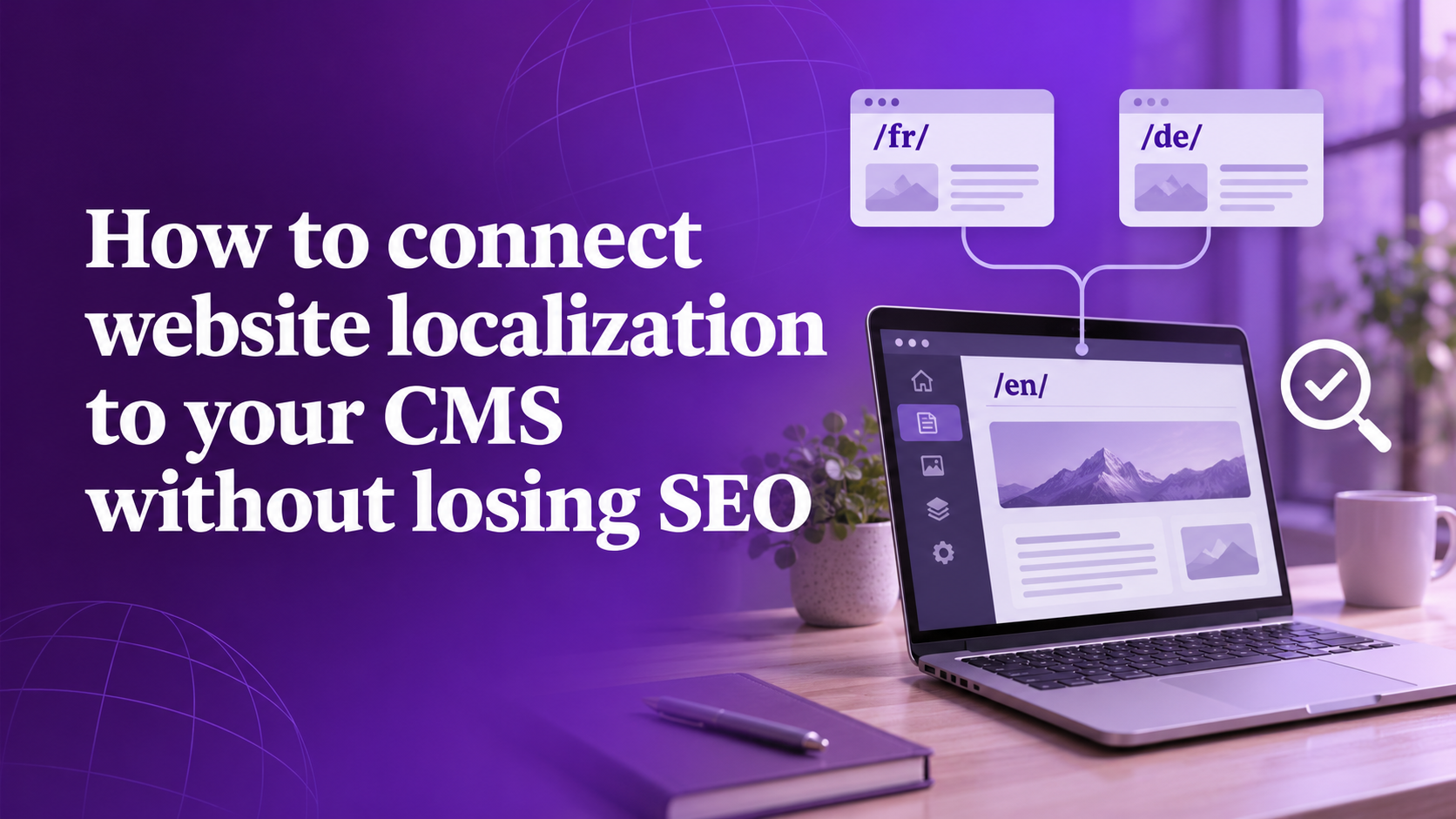
Give every language its own indexable URL
Google's multilingual site guidance recommends different URLs for each language version of a page. Cookies or browser settings that swap the language on one URL mean Google may not find and crawl every variation.
Google documents country-code domains (example.de), subdomains (de.example.com), and subdirectories (example.com/de/), each with trade-offs. It marks URL parameters such as ?loc=de as "Not recommended" and does not rank subdomains against subdirectories.
Google also advises against automatically redirecting users from one language version to another. Googlebot usually crawls from the US without a language preference, so redirects can hide versions from search engines. Give visitors a visible link to switch languages instead.
Add reciprocal hreflang annotations
Hreflang tags tell Google which page to show searchers in each language or region. Google's hreflang documentation states that each language version must list itself as well as all other language versions.
The links must be reciprocal, since Google ignores tags when two pages don't point to each other. Google also says localized pages count as duplicates only when the main content stays untranslated. Google accepts several equivalent ways to deliver hreflang, so pick one and keep it consistent.
The Localize SEO Settings guide shows how to give each target language a unique URL. Once you save, Localize adds hreflang annotations to all pages automatically.
For a closer look at syntax and common mistakes, read our explainer on how hreflang tags work.
Translate metadata and fields beyond body copy
Search engines and visitors read more than your paragraphs. A translated page that keeps English titles or navigation sends mixed signals, so cover these fields too:
- Title tags and meta descriptions
- Image alt text
- URLs and page slugs
- Navigation menus and footers
- Date, number, and currency formats
Research keywords in each target language directly, because a literal translation of your English keyword often misses how local buyers search. Have a local expert review translated titles before launch. Localize includes metadata in website translation, as our guide to ocalized SEO for international markets explains.
Website localization CMS launch checklist
A launch goes smoother when you treat translation as a workflow with checkpoints. Work through this list in order, since early choices like URL structure are hard to change later.
- Pick the integration method that matches your CMS architecture and team ownership.
- Choose a URL structure that gives every language its own indexable URL.
- Configure reciprocal hreflang across all language versions, including a self-reference on each page.
- Translate metadata, alt text, and navigation early, since they appear on every page.
- Build a glossary for brand and product terms, using the Localize glossary documentation for setup.
- Plan layouts for text expansion and right-to-left scripts such as Arabic or Hebrew.
- Review translations in context before publishing, with optional quality reviews and translation memory from Localize workflow and translation memory.
- Test indexing by confirming translated pages carry no noindex tag and no language-based redirects.
- Monitor rankings and conversions by locale, then adjust keywords and copy for each market.
Text expansion deserves attention in step 6. W3C text expansion guidance republishes IBM figures from 2007 showing English strings of up to 10 characters can grow 200–300% in European languages. Those short strings include buttons and menu items, so test them in every language.
For a fuller plan, download our website localization playbook. It pairs well with this checklist once you've chosen your integration method.